August 13, 2026
Campus Onboarding Guide - MECW



These are the guidelines for MECW(Mahindra Engineering College of Women) students on how to set up their Topcoder accounts, complete onboarding, register and submit for a challenge.
Topcoder Registration
These are the steps to follow
Click on the Get Started button from the MECW Homepage. Visit the Page

You will be taken to the Topcoder Login up page. Click on Sign up tab and provide the required details and Sign up

Check your email for account activation code and enter it

Set up your MFA (Multi-Factor Authentication)

Once you have set up your MFA you are successfully registered to Topcoder and will be taken to the onboarding flow.
Topcoder Onboarding
Keeping your skills and profile information up to date increases your chances of getting more work.
Update your skills

Update your availability status

Update your Work/Internship experience if you have any

Update your education details


Upload your profile photo and enter your Bio details

You have successfully completed your Topcoder onboarding and will be taken to your profile page.
Registering for a challenge -
Click on go to Challenges

Click on the the Challenge

Click on Register

Read the Terms and Conditions and Code of Conduct. Click on ‘I Agree’ and Register.

Read the Standard Terms and Click ‘I Agree’

Click on “Challenge Discussion” to open the Challenge Forums.
Challenge Forums are the official discussion area for the challenge. Students can use this space to ask questions, clarify requirements, check doubts about submission rules, and view answers shared by the challenge organizers. Other participants may also post useful questions, so students should review existing discussions before asking a new question.
Once inside the forums, students may see different discussion sections such as Code Questions and Code Documents. Use the relevant section to post questions related to the challenge requirements, technical setup, expected submission format, or any clarification needed before submitting the solution.

Challenge Forums
To Submit a solution, Click Submit solution

Select the ZIP file of the solution and upload it. Read the guideline for submitting solution and click i agree. Click Submit to submit the solution.

You can Add new submission by clicking on ‘Add Submissions’. To view your submission, go to ‘My Submission’.

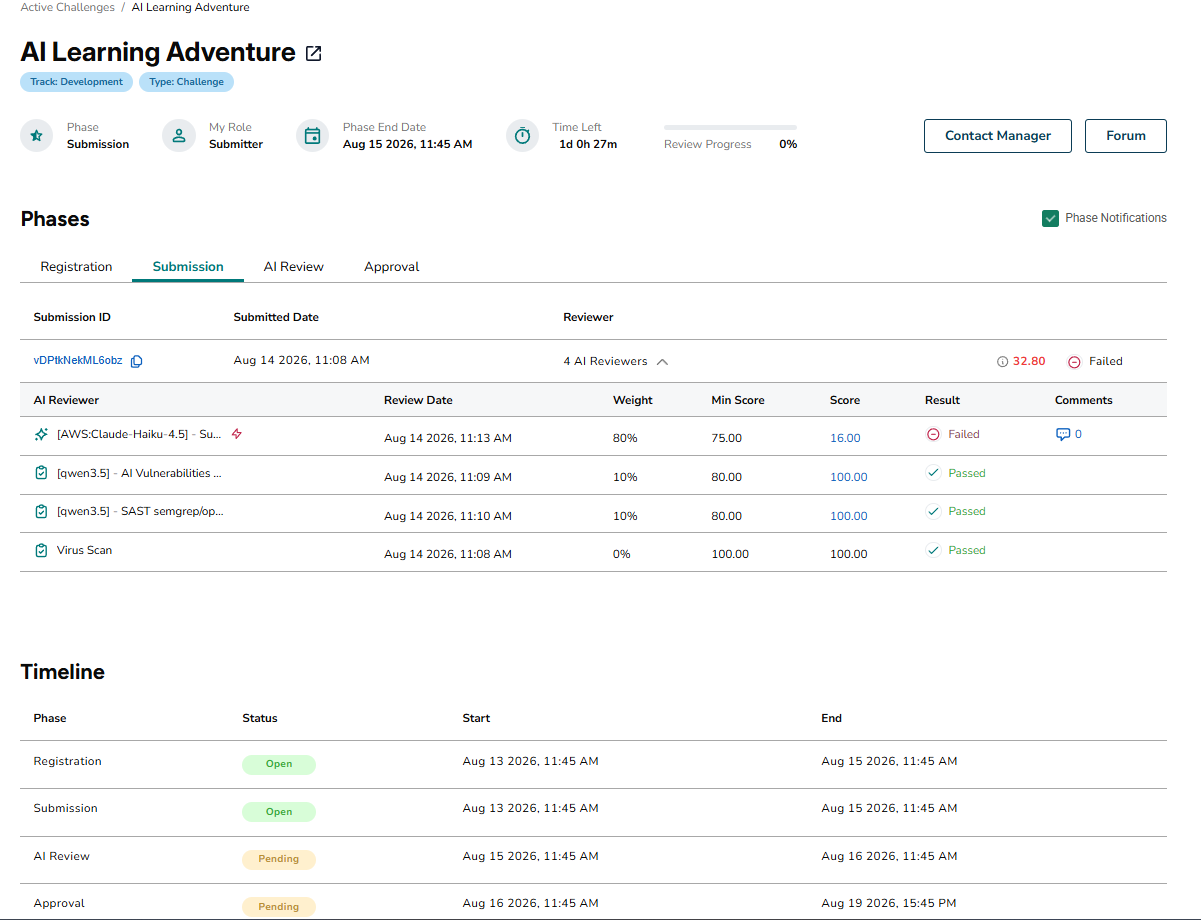
Click on ‘My Submission’. To Review your submission, click ‘REVIEW’, it will redirect you to a new page.

The Review page includes different phases of the challenge, timeline and scores for your submission.